Publishers of technology books, eBooks, and videos for creative people
Register your product to gain access to bonus material or receive a coupon.
Adobe Dreamweaver CS6 Classroom in a Book
- By Adobe Creative Team
- Published Jun 17, 2012 by Adobe Press. Part of the Classroom in a Book series.
Book
- Sorry, this book is no longer in print.
eBook (Watermarked)
- Your Price: $40.47
- List Price: $50.59
- Includes EPUB and PDF
- About eBook Formats
This eBook includes the following formats, accessible from your Account page after purchase:
 EPUB
The open industry format known for its reflowable content and usability on supported mobile devices.
EPUB
The open industry format known for its reflowable content and usability on supported mobile devices.
 PDF
The popular standard, used most often with the free Acrobat® Reader® software.
PDF
The popular standard, used most often with the free Acrobat® Reader® software.
This eBook requires no passwords or activation to read. We customize your eBook by discreetly watermarking it with your name, making it uniquely yours.
Description
- Copyright 2012
- Dimensions: 7-3/8" x 9-1/8"
- Pages: 448
- Edition: 1st
- Book
- ISBN-10: 0-321-82245-5
- ISBN-13: 978-0-321-82245-1
Creative professionals seeking the fastest, easiest, most comprehensive way to learn Adobe Dreamweaver CS6 choose Adobe Dreamweaver CS6: Classroom in a Book from the Adobe Creative Team. The 15 project-based lessons in this book show you step by step everything you need to know to work in Dreamweaver CS6. You’ll learn to create a professional website without having to write code by hand.
This completely revised CS6 edition also covers HTML5, CSS3, and media queries for responsive web design. The book also shows how to create HTML-based headings, paragraphs, lists, and tables; insert graphics and Photoshop Smart Objects; add links to text and images; apply cascading styles sheets; and customize the Dreamweaver workspace. You’ll also learn to add interactive elements to your sites, such as HTML5-compatible video and animation, get guidance for working with code, and finally publish a finished site to the Web.
The companion DVD includes all lesson files so you can work along with the book, as well as, two hours of free video tutorials from Adobe Dreamweaver CS6 Learn by Video.
**Breaking News! In September 2012 Adobe released an update to Dreamweaver offering new features for Creative Cloud customers, that give you the ability to easily add HTML5 tags, audio, video and Adobe Edge Animate compositions to your projects, and quickly find files with real-time search results on Mac OS. Register your book at peachpit.com/register to receive a free update that covers these features, including a completely new chapter, “Making Your Web Design Mobile-Ready.”
Sample Content
Excerpt
Creating a Page Layout with Adobe Dreamweaver CS6
Sample Pages
Download Chapter 4 Creating a Page Layout
Table of Contents
Getting Started
Chapter 1. Customizing Your Workspace
Touring the workspace
Switching and splitting views
Working with panels
Selecting a workspace layout
Adjusting toolbars
Personalizing preferences
Creating custom keyboard shortcuts
Using the Property inspector
Chapter 2. HTML Basics
What is HTML?
Where did HTML begin?
Writing your own HTML code
Frequently used HTML 4 codes
Introducing HTML5
Chapter 3. CSS Basics
What is CSS?
HTML vs. CSS formatting
HTML defaults
CSS box model
Formatting text
Formatting objects
Multiples, classes, and IDs, oh my!
CSS3 overview and support
Chapter 4. Creating a Page Layout
Web design basics
Working with thumbnails and wireframes
Defining a Dreamweaver site
Using the Welcome screen
Previewing your completed file
Modifying an existing CSS layout
Adding a background image to the header
Inserting new components
Changing element alignment
Modifying the page width and background color
Modifying existing content and formatting
Inserting an image placeholder
Inserting placeholder text
Modifying the footer
Checking browser compatibility
Chapter 5. Working with Cascading Style Sheets
Previewing the completed file
Working with the CSS Styles panel
Working with type
Using images for graphical effects
Creating new CSS rules
Creating an interactive menu
Modifying hyperlink behavior
Creating faux columns
Moving rules to an external style sheet
Creating style sheets for other media
Chapter 6. Working with Templates
Previewing completed files
Creating a template from an existing layout
Inserting editable regions
Producing child pages
Updating a template
Using library items
Using server-side includes
Chapter 7. Working with Text, Lists, and Tables
Previewing the completed file
Creating and styling text
Creating and styling tables
Spell checking webpages
Finding and replacing text
Chapter 8. Working with Images
Reviewing web image basics
Previewing the completed file
Inserting an image
Adjusting image positions with CSS classes
Working with the Insert panel
Using Adobe Bridge to insert images
Inserting non-web file types
Working with Photoshop Smart Objects
Copying and pasting images from Photoshop and Fireworks
Inserting images by drag and drop
Optimizing images with the Property inspector
Chapter 9. Working with Navigation
Hyperlink basics
Previewing the completed file
Creating internal hyperlinks
Creating an image-based link
Creating an external link
Setting up email links
Targeting page elements
Inserting Spry menu bars
Checking your page
Chapter 10. Adding Interactivity
Learning about Dreamweaver behaviors
Previewing the completed file
Working with Dreamweaver behaviors
Working with Spry Accordion widgets
Chapter 11. Working with Web Animation and Video
Understanding web animation and video
Previewing the completed file
Adding web animation to a page
Adding web video to a page
Chapter 12. Working with Forms
Previewing the completed file
Learning about forms
Adding a form to a page
Inserting text form elements
Inserting checkboxes
Creating radio buttons
Incorporating text areas
Working with lists
Adding a Submit button
Specifying a form action
Emailing form data
Styling forms
Chapter 13. Working with Online Data
Working with dynamic content
Previewing the completed file
Using HTML and XML data
Choosing a server model
Configuring a local web server
Setting up a testing server
Building database applications
Chapter 14. Building Dynamic Pages with Data
Building pages with PHP
Creating a master/detail page set
Creating a detail page
Chapter 15. Publishing to the Web
Defining a remote site
Cloaking folders and files
Wrapping things up
Putting your site online
Synchronizing local and remote sites
Updates
Updates & Corrections
Update to Lesson 6 for the Creative Cloud version of Dreamweaver CS6
Server side includes (SSI) are still supported by the program, but there's a subtle trick now to implementing them.
As we noted in the book, SSIs are only supported by most browsers when saving to a dynamic server model, such as ASP and PHP. A normal HTML page cannot use an SSI. Most browsers will allow you to use an SSI if you first save the page using the extension ".shtml"<.p>
Now, Dreamweaver only allows you to create an SSI automatically for ASP and PHP pages. The include option will appear when you create AND save a dynamic page for either server model and then open the Insert menu (see screen shots).
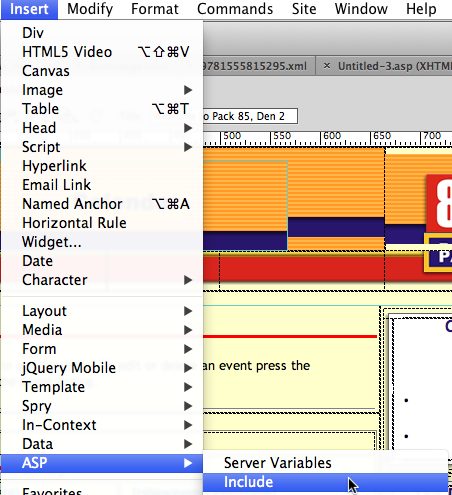
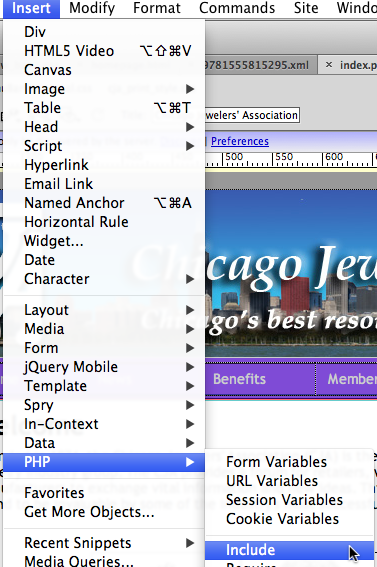
Note: Until you actually save the page, Dreamweaver may not acknowledge a page as dynamic. Otherwise, you can still write the code for an SSI by hand and save the page using a dynamic extension, such as .asp, .php .shtml, or .dhtml.
You can find a description of the changes noted above at the following URL: http://forums.adobe.com/message/4949643. I hope this email has been helpful.